Command-line arguments
SIMRIG Control Center uses command-line arguments to augment its behavior and startup procedure. They are an advanced feature only useful to a select few.
The following command-line arguments are recognized:
Argument |
Description |
|---|---|
/Version |
Prints the program version then terminates |
/SingleCore |
Limits the program to use a single processor core |
/ReloadDrivers |
Fore reload all device drivers once at startup |
/ReloadDriver |
See /ReloadDrivers |
/ForceEnable |
Automatically enable motion at startup |
/TelemetrySource |
Lists all available telemetry source IDs |
/TelemetrySource=<id> |
Overrides automatic telemetry source selection with the given telemetry source ID |
/Minimized |
Start with main window minimized |
/Simple |
Shows a simplified UI with less settings and more automation |
/EnableRemoteControl |
Listen for and obey remote control commands |
The following command-line arguments are used for internal purposes. Do not rely on these:
Argument |
Description |
|---|---|
/AutoStart |
Indicates that the program was started by Windows at system startup. The current directory is set to include the SIMRIG Control Center executable. |
/Restart |
Indicates that the program was restarted by it-self. Waits for the previous instance to exit before continuing. |
/Updated |
Indicates that the program was updated |
Remote control commands
Remote control commands are used to automate SIMRIG Control Center. They allow external programs and scripts limited control of the system. This control is exercised by running SimrigRemoteControl.exe with specific command-line arguments, and by interpreting the returned exit codes and JSON.
Note
SimrigRemoteControl.exe is part of the optional Management Tools package. Install this pacakge using the SIMRIG Control Center installer.
The procedure is as follows:
Start a long-lived instance of SIMRIG Control Center using the /EnableRemoteControl command-line argument. This instance controls the motion system, reads telemetry from the game, and interacts with the user. It is known as the server [1]. Then, to enable motion, run SimrigRemoteControl.exe EnableMotion. This short-lived instance of SimrigRemoteControl.exe is known as the client [2]. The client issues an EnableMotion command to the server. The server then enables motion and replies with either success or failure. The client process then terminates and reports the result using an exit code and JSON over standard output.
Put differently, the user would start SIMRIG Control Center with remote control enabled. The script then starts SimrigRemoteControl.exe again and again every time it likes to issue a command.
The following exit codes are returned:
Exit code |
Description |
|---|---|
0 |
Success |
1 |
Generic server error . See standard output for details. |
2 |
Generic client error. See standard output for details. |
3 |
Unknown command. The client doesn’t recognize the given command. |
4 |
Malformed or missing arguments. The command expects more or other information from the command-line arguments. |
5 |
Timeout. No server is running. |
The following commands are available:
Command |
Description |
|---|---|
EnableMotion |
Enables the motion system. Motion starts when telemetry becomes available. |
DisableMotion |
Disables the motion system. The motion system returns to its neutral position then power is disabled to the motors. |
ResetAllDevices |
Resets all connected devices |
SystemStatus |
Returns system and device status |
Detailed results are returned as JSON objects on standard output.
Error messages has the following format:
{
        "type": "error",
        "error": "A description of the error goes here.",
        "other_fields": "may also exist"
}
Success messages has the following format:
{
        "type": "success",
        "other_fields": "may also exist"
}
EnableMotion
Enables the motion system. This has the same effect as pressing the Enable button in the main UI. Motion starts when telemetry is available. The system is returned to its resting position when telemetry stops then power is disabled.
- output:
An empty success message is returned on success:
{"type": "success"}.
DisableMotion
Disables the motion system. This has the same effect as pressing the Disable button in the main UI. The system is returned to its resting position then power is disabled.
- output:
An empty success message is returned on success:
{"type": "success"}.
ResetAllDevices
Warning
Error codes are only set when a hardware issue occur. They should not be taken lightly. Always investigate the cause of the error code prior to reset. Failure to comply may result in permanent damage.
Resets all connected devices. This clears all error codes.
- output:
An empty success message is returned on success:
{"type": "success"}.
SystemStatus
Get the system status; such as whether or not motion is enabled. This includes information about all connected devices.
- output:
The system status is returned on success:
{
        "system_status":
        {
                "devices":
                [
                        {
                                "nominal": false,
                                "error_codes": [18, 18, 18, 18],
                                "estopped": false,
                                "firmware_update_available": false,
                                "device_status": ""
                        }
                ],
                "motion_enabled": false,
                "telemetry_source": 0,
                "telemetry_status": ""
        },
        "type": "success"
}
- system_status
- devices
This is an array of all devices connected to the system. It may be
nullif no devices are found.- nominal
This flag is
trueif the device status is nominal. If the flag isfalseit may indicate that the device is disconnected, or than an error code is set.
- error_codes
Unless
nullthis array contains all error codes set by the device. Reset the device to clear the error codes. See warning.
- estopped
A convenience flag that is
truewhen the emergency stop is active. This is an interpretation of the error codes array.
- firmware_update_available
This flag is
trueif a firmware update is available for this device.
- device_status
A human readable explanation of the device status. It may indicate that the device is running and everything is working as expected. It may also indicate a hardware error has occurred etc.
- motion_enabled
This flag is
truewhen motion is enabled. Use theEnableMotion/DisableMotioncommands to control this flag.
- telemetry_source
The ID of the current telemetry source.
- telemetry_status
A human readable explanation of the current status of the telemetry source. It may indicate that the game is running and everything is working as expected. It may also indicate that no game is running etc.
Changelog
- 2023-08-28:
Use
SimrigRemoteControl.exeto issue commands intead ofSimrigControlCenter.exe
- 2023-08-01:
Renamed devices’
oktonominalAdds
device_status
Shortcut setup
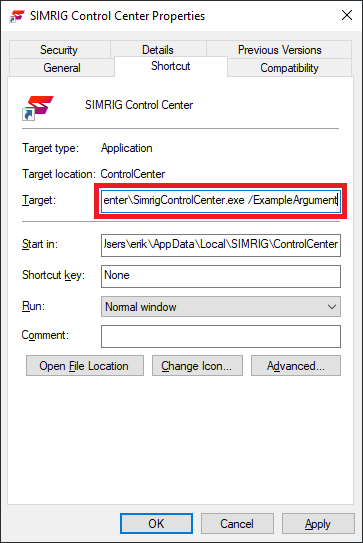
To start SIMRIG Control Center with one or more command-line arguments create a new shortcut on your desktop or start menu. Use a memorable name. Then right-click the shortcut to open its Properties.
Add your command-line arguments to the end of the Target textbox. Save the changes.
SIMRIG Control Center starts with the added command-line arguments any time that this shortcut is used in the future.