
System Status
This section will explain the basics of how the system status is presented. The system status is displayed at the bottom of the screen.

This is the system status when fully expanded.
The system status has three rows: Telemetry, Devices, and Motion.
Use the arrow to contract and expand the system status. When contracted, each row is replaced by a colored dot. A green dot means that everything is in order. The Toggle motion link next to the dots enables and disables motion.
Telemetry
SIMRIG Control Center relies on telemetry data to move the rig. This telemetry data is provided by the game you play. SIMRIG Control Center automatically detects which game you play by looking for known processes. It automatically establishes telemetry links with supported games. The Telemetry row indicates if this telemetry link is operational.
The status begins with the name of the game. Some status messages you may encounter:
- Looking for game:
SIMRIG Control Center is waiting for a supported game to start.
- Project CARS 2 / Connecting…:
Project CARS 2 is running but no telemetry link has been established yet. Some simulators only send telemetry data during a race or practice session. For games that send telemetry over the network the message includes the UDP port, and the address of the console if any. For example “Connecting on port 20778…”.
- Project CARS 2 / Connected:
A telemetry link is established with Project CARS 2. The motion system should receive motion commands.
- Project CARS 2 / Timeout:
No telemetry data was detected on the link. The telemetry link will recover when data becomes available. Some simulators only send telemetry data during a race or practice session.
- Project CARS 2 / Error:
The telemetry link could not be established. SIMRIG Control Center keeps trying. See the log file for details.
Tip
Stuck on Connecting? Make sure the game is configured for motion, that the UDP port in the game matches the one in the message, and that SIMRIG Control Center is allowed through the firewall.
Telemetry source selection
Most of the time SIMRIG Control Center can automatically detect which game you are playing and select an appropriate telemetry source. However, this only works on PC. The Change button allows console players to manually select a game as telemetry source.

Pressing the Change button opens a list of supported console games. Select a game from the list and SIMRIG Control Center will try to establish a connection with your console.
Press Show all to list all games, including those that are normally detected automatically. PC users can use this to force a specific game.
Select Automatic mode to return to automatic detection of games running on this computer
The first time you select a console game you may be asked to:
Enter the IP address of your console. It is configured under UDP settings.
Allow SIMRIG Control Center through Windows Firewall. Press OK to let SIMRIG Control Center configure the firewall.
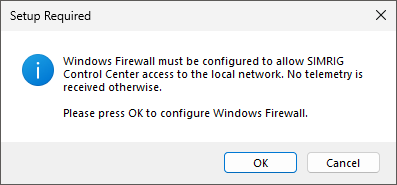
Once selected the telemetry source stays active until another is selected; or until automatic mode is enabled. SIMRIG Control Center returns to automatic mode when restarted, unless Remember chosen game is checked on the Settings Page.
Devices
The Devices row shows the number of connected devices:
- Searching for devices:
No device has been found. Make sure your device is connected to the PC and powered.
- Connected to 1 device:
One device is connected and working.
- Connected to 1 device with 1 error:
A hardware error has occurred. Open the device page for details.
- Connected to 1 device with 1 unpowered:
The device is connected over USB but does not respond. Make sure the power supply is connected and turned on.
Motion
The Motion row indicates if motion is enabled or not. Press the Enable button (or Disable) to toggle motion on or off. This applies to all devices: the motion system and the belt tensioner.
Note
You must always press the Enable button at every startup to enable motion.
Caution
The system may calibrate immediately when enabled or at a later point in time.
A voice message is played when motion is enabled or disabled.
Motion starts when telemetry becomes available. Motion is automatically disabled if no telemetry is received for 30 minutes.
The status reads “Enabled (paused: …)” if the motion system or the belt tensioner has been paused using a hotkey.
Motion toggle hotkey
You can toggle motion on/off using a hotkey. No hotkey is bound by default as indicated by the button’s text (none):

Click the button to bind a hotkey. The button shows Press any key when waiting for a hotkey. Press a key on your keyboard or a button on your wheel. Press ESC to unbind the hotkey.

In this example a key on the keyboard is bound to toggle motion on/off.
There are more hotkeys. See Hotkeys.