
Device Page
This section describes the device page and its operation.
Press Devices on the top menu to open the device page. It is split in two parts: a list of all recognized devices on the left, and details about the selected device on the right.
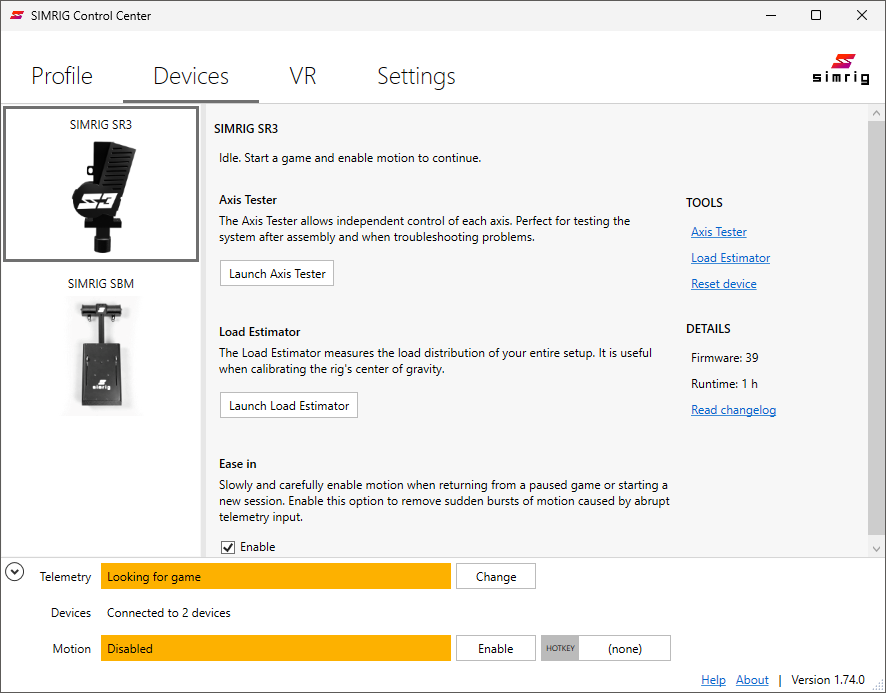
The device page with a motion system selected.
Click a device in the list to select it. On the right you will find its status, its tools and settings, and details such as firmware version and runtime.
The message “No devices connected!” is shown at the top of the page if no device is found. Make sure the device is connected to your PC and powered.
Device status
The status of the selected device is shown at the top:
- Idle. Start a game and enable motion to continue.:
The device is ready.
- Running. Motors are powered.:
The device is in use.
A warning is shown below the device in the list if something requires your attention. The details are shown on the right when the device is selected.
Warning in list |
Message |
What to do |
|---|---|---|
POWER |
Unpowered device |
The device is connected over USB but does not respond. Make sure the power supply is connected and turned on. |
HARDWARE |
A hardware error has occurred |
See Hardware errors. |
HARDWARE |
Emergency stop active |
Twist the emergency stop to release it. Then press Reset device. |
USB |
Communication issues |
The USB-connection was interrupted. This may be temporary and caused by loss of power. Wait, check the power, or disconnect and reconnect the USB-cable. |
BOOTLOADER |
Bootloader mode |
A firmware upgrade is in progress, or a previous attempt was interrupted. Click Retry upgrade. If that fails, click attempt to exit bootloader. |
UNIDENTIFIED |
Unidentified device |
The device could not be identified. Make sure the power supply is connected and turned on. |
DISCONNECTED |
Unavailable device |
The device is no longer connected to the PC. |
SIMRIG Control Center opens the device page automatically when a hardware error occurs or when a firmware upgrade is available.
Some messages belong to one kind of device:
- Motion system:
- Belt tensioner:
See Temperature warning and Tension limiter.
Hardware errors
Warning
Hardware errors are only reported when something is wrong. Always investigate the cause prior to resetting the device.
The message “A hardware error has occurred” is shown together with a description of the error. Click the error codes link for details. The Error Codes window lists the error reported by each actuator: front-left, front-right, rear-left, and rear-right.
The most common causes are:
The emergency stop was activated. Investigate why, then twist the emergency stop button to release it.
The power supply is turned off or disconnected
Correct the problem and press Reset device to continue. The device will recalibrate.
Please contact support if the error persists.
Firmware upgrade
The message “Firmware upgrade available” is shown when a newer firmware is available for the device. Click Read changelog to see what is new. Click Upgrade firmware to install it.
Do not disconnect the device or close the program during the upgrade. If the upgrade is interrupted the device stays in bootloader mode. Click Retry upgrade to try again.
Tools
The tools are listed under Tools on the right side. All tools are not available for all devices.
- Axis Tester:
See Axis Tester. Only shown for the motion system.
- Load Estimator:
See Load Estimator. Only shown for the motion system.
- Belt Tension:
See Auto Calibration and Set Belt Tension. Only shown for the belt tensioner.
- Reset device:
Restarts the device. This clears any hardware error and makes the device recalibrate. See the warning under Hardware errors.
Settings
These settings apply to the device regardless of profile and game. A setting is only shown if the device supports it.
- High frequency control:
See the motion system section. Only shown for SIMRIG SR1 and SIMRIG SR2 with older firmware.
- Keep level:
See the motion system section. Only shown for SIMRIG SR1.
- Ease in:
Slowly and carefully enables motion when returning from a paused game or starting a new session. Enable this option to remove sudden bursts of motion caused by abrupt telemetry input.
- Tension limiter:
See Tension limiter. Only shown for the belt tensioner.
Details
Under Details on the right side you will find:
- Firmware:
The firmware version of the device. Click Read changelog to see what has changed between firmware versions.
- Runtime:
The number of hours the device has been in use.