
Hotkeys
This section describes hotkeys and how to bind them.
A hotkey lets you control SIMRIG Control Center without leaving the game. A hotkey can be a key on your keyboard or a button on your wheel, joystick, or button box.
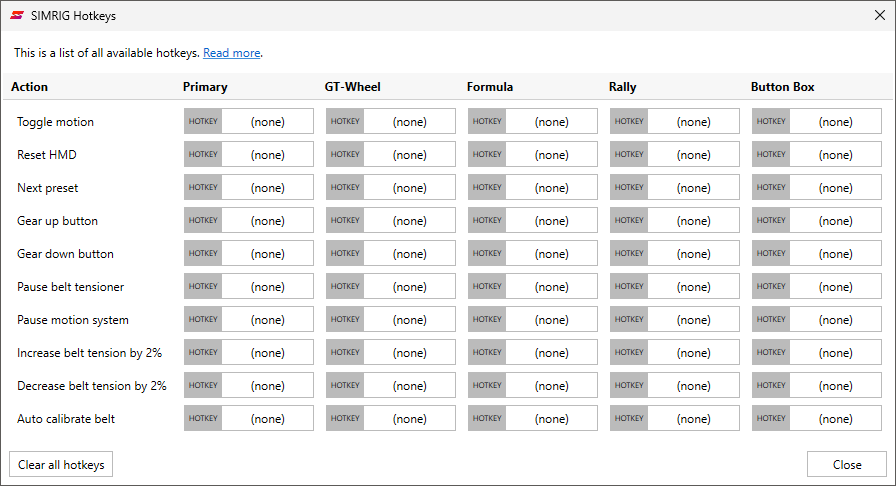
Open the Settings page and press Configure hotkeys to see all hotkeys in one place.
Note
Analog axes and direction pads (hats) cannot be used as hotkeys.
Available hotkeys
- Toggle motion:
Toggles motion on and off. This has the same effect as pressing the Enable or Disable button in the system status.
- Reset HMD:
Resets the seated position of your VR-headset. Used with motion cancellation, see Reset HMD.
- Next preset:
Switches to the next preset under Intensity settings on the active profile: Normal, High, Raw, and Custom.
- Gear up button:
Tells SIMRIG Control Center that you are shifting up. Bind it to the same button or paddle that shifts up in the game. This makes the Gear shifts settings on the profile react sooner.
- Gear down button:
Tells SIMRIG Control Center that you are shifting down. Bind it to the same button or paddle that shifts down in the game.
- Pause belt tensioner:
Toggles the belt tensioner on and off while leaving the motion system running.
- Pause motion system:
Toggles the motion system on and off while leaving the belt tensioner running.
- Increase belt tension by 2%:
Raises both the pre-tension and the max-tension of the belt tensioner by 2 percentage points.
- Decrease belt tension by 2%:
Lowers both the pre-tension and the max-tension of the belt tensioner by 2 percentage points.
- Auto calibrate belt:
Runs the Auto Calibration of the belt tensioner. Get seated and buckle up before you press it.
Note
The two pause hotkeys only have an effect while motion is enabled. Use Toggle motion to enable or disable everything at once.
SIMRIG Control Center plays a short voice message when motion is enabled or disabled and when the preset changes. This way you know that the hotkey was registered without looking at the screen.
Bind a hotkey
Click the button next to the hotkey. The button shows (none) if nothing is bound.
The button shows Press any key
Press the key or button you would like to use
To remove a hotkey, click the button and then press ESC on your keyboard.
To remove all hotkeys at once, press Clear all hotkeys.
Each key or button can only be bound once. If you bind a key or button that is already in use, it is removed from its previous hotkey.
Other places to bind hotkeys
Some hotkeys are also shown next to the settings they belong to. These buttons show and change the Primary column.
Toggle motion in the system status at the bottom of the window
Reset HMD on the VR page
Next preset under Intensity settings on the profile page
Gear up button and Gear down button under Gear shifts on the profile page